 MoneyBook
Log a transaction in two taps
The calculator keypad, bookmarks, notification quick add, widgets and Wear OS. Every way MoneyBook gets a purchase into your book fast.
Most people who give up on tracking their money don't stop because budgets are hard. They stop because typing in every coffee feels like a chore. MoneyBook doesn't link to your bank, so we put a lot of work into making manual entry as fast as it can be.
This post walks through every way to log a transaction, from the full Add screen down to a single tap on your watch.
The Add screen: a calculator, not a text field
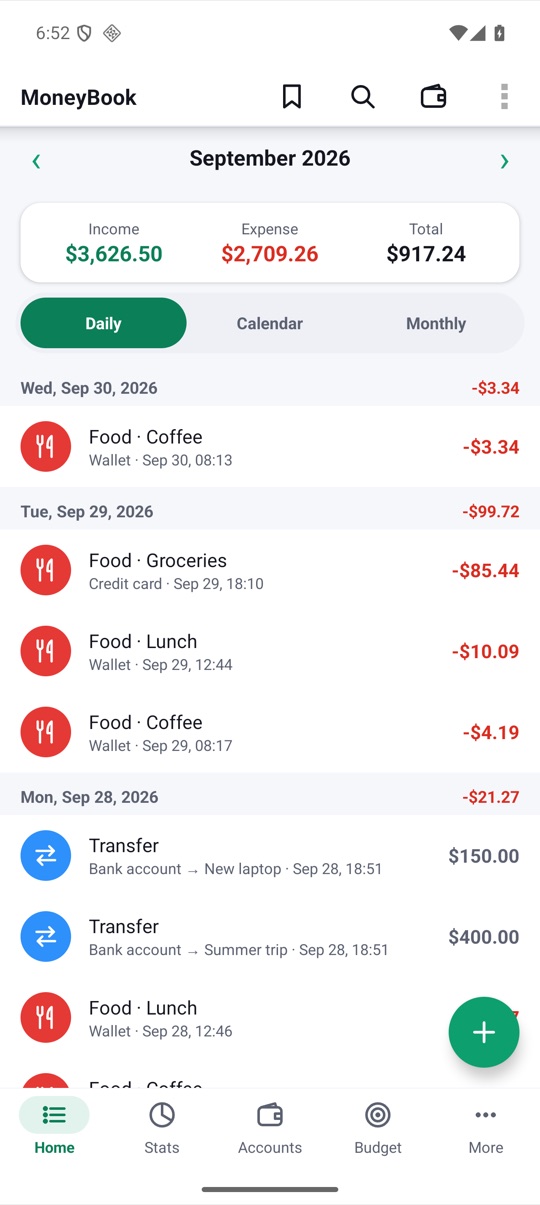
Tap the green + on Home and the Add screen opens with the amount already focused. Instead of the system keyboard you get MoneyBook's own keypad: digits, + − × ÷, =, backspace, C and a check mark to confirm.
That keypad is a real calculator. Splitting a receipt in your head? Type `12.80+4.50` and the live result, = $17.30, shows under the amount before you save. Normal precedence applies, and results round half-up to the cent.
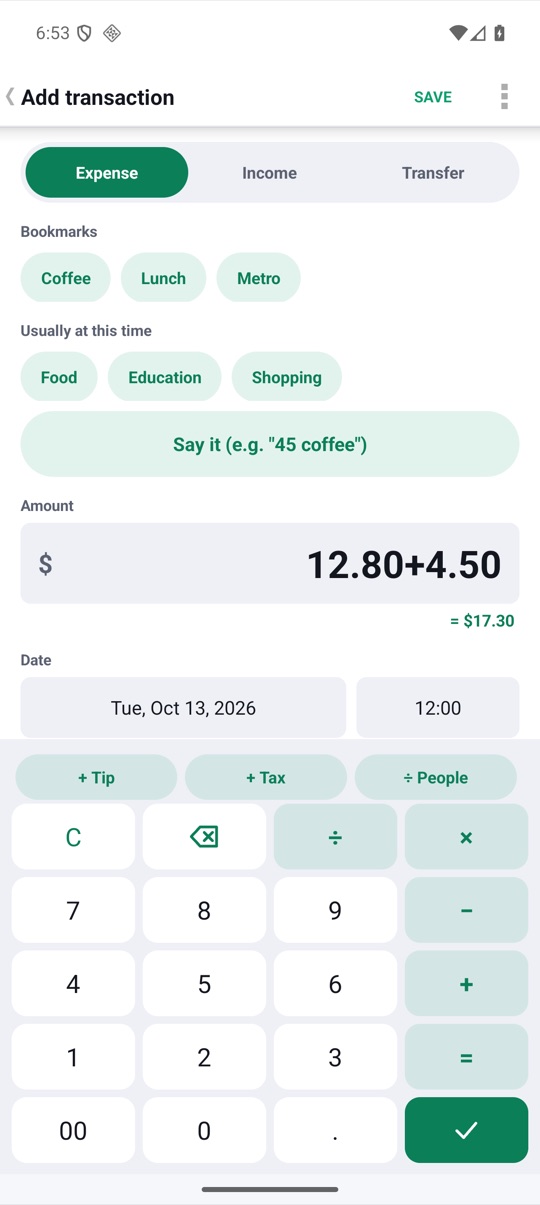
The rest of the form uses smart defaults. The date and time start at now. The category and account start at whatever you last used for that type. So for a typical coffee, you type the amount and hit Save.
Bookmarks: your regular purchases, one tap away
If you buy the same things often, save them as bookmarks. Fill in the form once, open the ⋮ menu and choose Save as bookmark. From then on:
- A row of bookmark chips sits at the top of the Add screen. Tap one to fill in the whole form.
- On Home, the bookmark icon in the top bar, or a long-press on the + button, adds a bookmark right away, with an Undo.
- Long-press a chip to delete it. That can be undone too.
- On Android 7.1 and later, your first three bookmarks also appear as shortcuts when you long-press the MoneyBook icon.
Quick add from a notification
Turn on More › Quick add notification and MoneyBook keeps a small notification ready. On Android 7 and later you can reply to it inline: type `45 coffee` for an expense or `+1200 salary` for income. The notification updates in place to confirm, for example "Saved: −$45.00 Coffee", with an Undo button.
The same quick reply works on the daily reminder. You can add tags as you type, like `45 coffee #work`. If you've set up rules, they run on quick replies too, so the right category gets picked for you. On Android 4.4 and older, the notification's Add button opens the calculator instead.
Widgets, shortcuts and the Quick Settings tile
- Month summary widget. It shows this month's total, income and expense, with a + button. It comes in compact, medium and large sizes, and the large one lists your top categories. It updates whenever your data changes.
- Quick add widget. A 1×1 button that opens the Add screen.
- Budgets widget. Your top five budgets with progress bars.
- App shortcuts. Long-press the launcher icon for Add expense, Add income, Transfer and Search (Android 7.1 and later).
- Quick Settings tile. Add MoneyBook's "Add expense" tile to your notification shade (Android 7 and later).
Share a bank message or receipt
When your bank sends a text or email about a purchase, share it to Add to MoneyBook. MoneyBook looks for an amount, a currency and a merchant, and opens a pre-filled Add screen. If it can't find an amount, the shared text is kept as the note so you don't lose it. Shared receipt images go to your To review inbox as drafts.
Nothing gets lost halfway
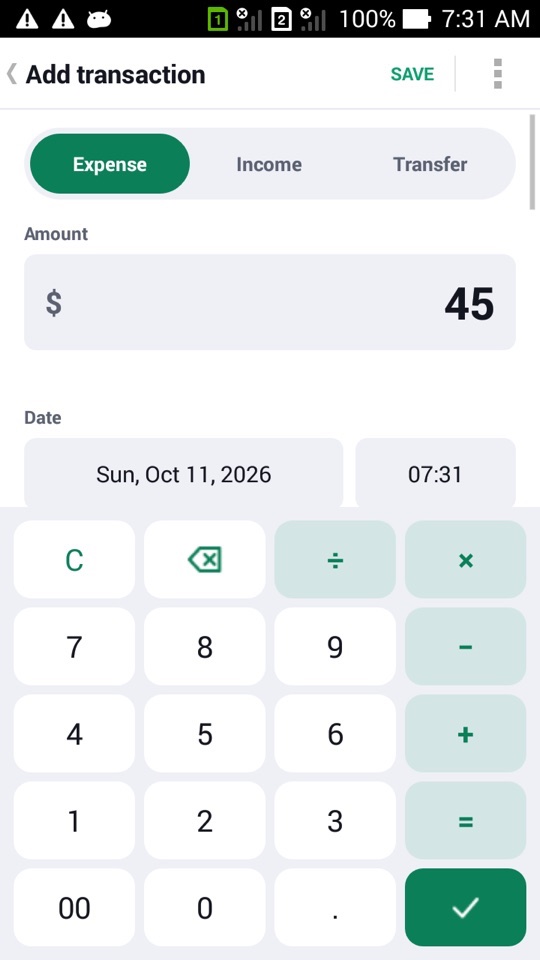
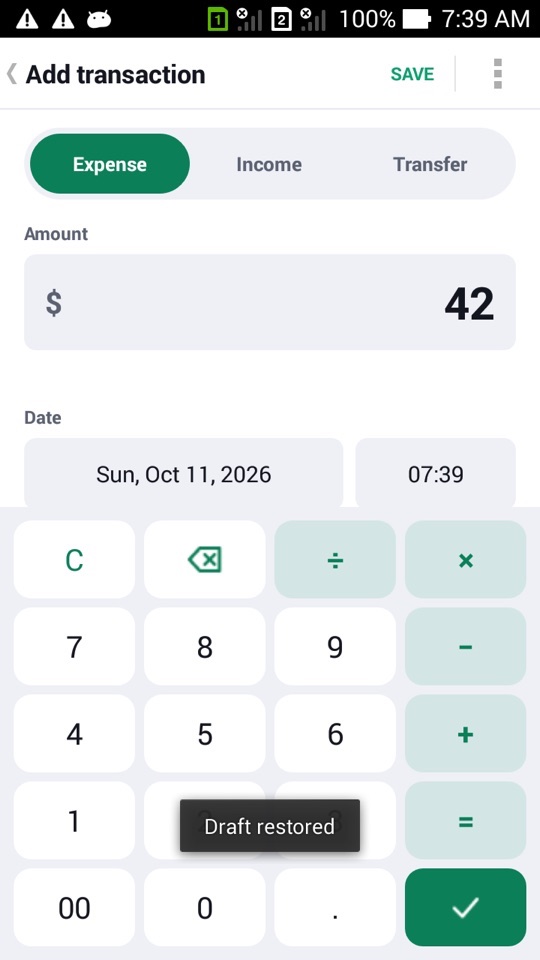
Got interrupted halfway through an entry? MoneyBook keeps a draft of new transactions. If you leave the app, rotate the phone, or Android closes MoneyBook in the background, the draft is waiting next time with a short "Draft restored" message. Saving or discarding clears it.
From your wrist
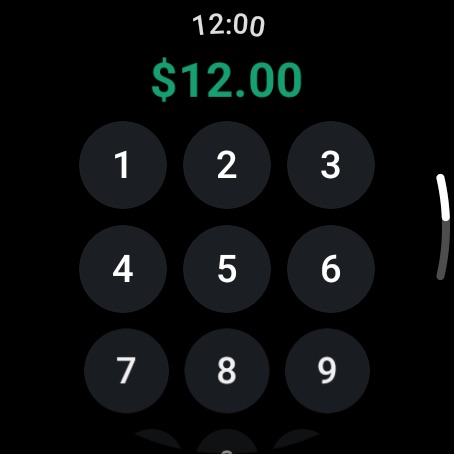
The Wear OS companion has its own quick add. Tap a bookmark chip such as Coffee, Lunch or Transit, or type an amount on a large keypad, tap the category chip to cycle through categories, and save. A confirmation with Undo closes by itself. The watch keeps its own ledger, so it works without your phone nearby.
How to set up the fastest path
- Add your usual coffee or lunch once, then open ⋮ › Save as bookmark.
- Repeat for two or three more things you buy every week.
- On Home, try a long-press on the + button to add a bookmark instantly.
- Open More › Quick add notification and turn it on.
- Add the Quick add or month summary widget to your home screen.
- On Android 7 and later, add the Add expense tile to Quick Settings.
FAQ
Can I do maths in the amount field?
Yes. The keypad supports + − × ÷ with normal precedence and shows the result live before you save.
Do bookmarks save the account and category too?
Yes. A bookmark fills in the whole form, so one tap can add a complete transaction.
Does quick add from a notification work on older phones?
On Android 7 and later you type straight into the notification. On Android 4.3 and 4.4, the notification's Add button opens the calculator screen instead, so you still get there in one tap.
Do entries on my watch show up on my phone?
Not at the moment. The watch app is standalone and keeps its own ledger. There's no phone–watch sync yet.