 MoneyBook
Why MoneyBook works offline, with no account
MoneyBook has no internet permission, no sign-up and no bank login. Here is what that means for your data, your backups and your phone.
A money app knows a lot about you: what you earn, where you shop, what you owe and who you pay. MoneyBook was built on one simple rule about that data. It stays on your phone unless you move it yourself.
That rule isn't a setting you have to find. MoneyBook has no internet permission. Android never gives the app a way to reach a server, so there is no account to create, no cloud to sync with, no ads and no analytics. This post explains what that means in practice, and what we built instead of the usual online features.
No account, no sign-up, no bank login
When you open MoneyBook for the first time, you get a short, skippable welcome. It asks the things a money app actually needs, such as your main currency and your starting accounts. Then you can explore with sample data or start fresh. There is no email field, no password and no "connect your bank" step.
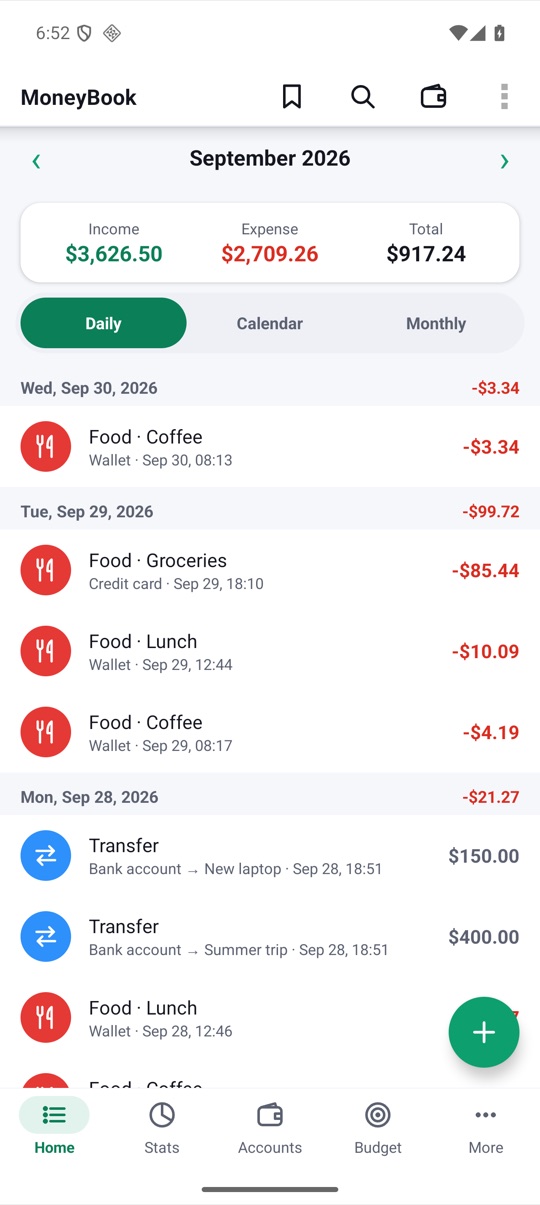
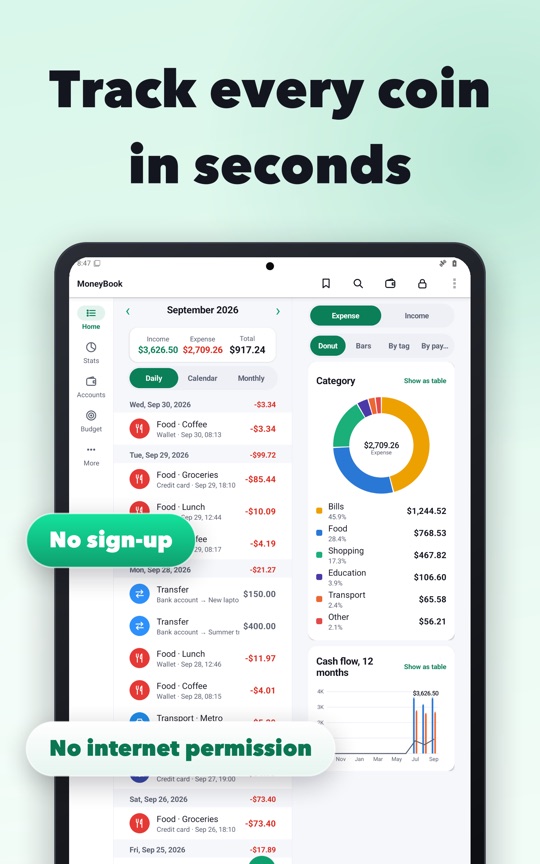
MoneyBook never asks for your bank login. You add transactions yourself, quickly, with a calculator keypad and one-tap bookmarks. You can also import a CSV, OFX or QIF file that you downloaded from your bank. It's a little more hands-on than automatic bank feeds. In return, no third party ever holds a key to your accounts.
MoneyBook is paid up front as a one-time purchase on Google Play. There are no in-app purchases, subscriptions or ads, and every feature is unlocked. With no business model built on your data, we have no reason to collect any.
How "no internet" is enforced
Saying an app is private is easy. MoneyBook is built so that it can't be anything else:
- The app's manifest removes the internet and network-state permissions, even if a library asks for them.
- A build check reads the final release manifest. If either permission ever comes back, the build fails before it can reach the store.
- The Wear OS companion app has the same rule and the same check.
- Google Play's Data safety form for MoneyBook declares no data collected and no data shared.
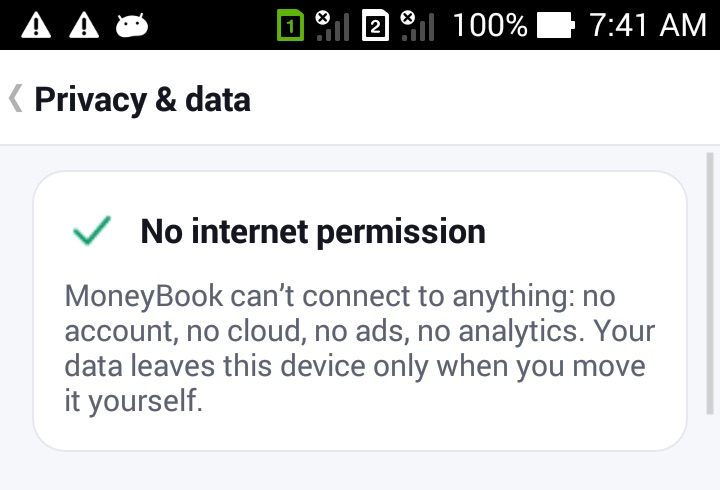
You can check this yourself. Open More › Privacy & data. The trust center at the top reads the permissions from the installed app, not from a hard-coded label. Below it, every permission the app holds is listed with the reason it needs it. The screen also shows how much space your ledger, receipts and local snapshots take up, and when your last backup ran.
What you get instead of the cloud
Going offline doesn't mean giving up backups, a second device or sharing. Each of those has a local version that keeps you in control:
- Backups to a folder. MoneyBook can write encrypted snapshots, daily or weekly, into a folder you choose. If that folder belongs to a cloud storage app on your phone, that app syncs it. MoneyBook itself still never goes online.
- Export everything. One file with all your data, optionally encrypted with a passphrase. You decide where it goes.
- Move to a new phone. Hand an encrypted snapshot to the share sheet, send it over Nearby Share, Bluetooth or a cable, and import it on the new phone.
- A household book. Share a book with a partner by swapping small encrypted files. There's no server in the middle. We cover it in Household sync without a server.
There's also the plain benefit of speed. Nothing waits for a network, so MoneyBook works the same in airplane mode, in a basement or abroad without roaming. It runs on Android 4.3 and up, including phones that are a decade old.
How to check what MoneyBook stores, and remove it
- Open the More tab and tap Privacy & data.
- Look at the top card. It should read No internet permission.
- Scroll through Permissions to see each permission and why it's there.
- Under Your data, check how much space the ledger, receipts and snapshots use.
- If you don't want Android's own device backup to copy your ledger, turn Android device backup off. MoneyBook then backs up nothing through it.
- To wipe everything, tap Delete everything and type the confirmation word. This removes the ledger, receipts, snapshots and the backup passphrase on this phone. Backups you saved elsewhere aren't touched.
The trade-offs, honestly
An offline app can't do some things. MoneyBook doesn't pull transactions from your bank automatically, because that needs a server and an aggregator holding your credentials. It doesn't read receipts with cloud OCR, and it doesn't offer AI coaching that would send your data away. We think the privacy and the reliability are worth it. But it's a choice, and it's fair to say so.
If you'd rather type less, MoneyBook can catch transactions from your bank's notifications instead. This is opt-in. It only reads the apps you tick, and everything it reads stays on the device.
FAQ
Does MoneyBook need an internet connection to work?
No. Every feature works in airplane mode. The app has no internet permission, so it couldn't connect even if it wanted to.
If there's no account, how do I keep a backup?
Set up Backups to a folder in More › Privacy & data, or use Export everything now and then. Both can be encrypted with a passphrase. Point the folder at a cloud-synced location if you want a copy off the phone.
Can I import my history from another money app?
Yes. The import wizard reads CSV and TSV files, with presets for common money-app exports, plus OFX and QIF files from banks. It shows a preview before anything is added and skips duplicates.
What happens to my data if I uninstall?
It's removed with the app, unless you've exported it or set up folder backups. Keep a backup before you uninstall or switch phones.