 MoneyBook
No-spend challenges, the wait list and your Year in review
Gentle money habits in MoneyBook. No-spend days and challenges, a wait list for impulse buys, a private Year in review, and limits on notifications.
Most money apps are good at telling you what went wrong. Fewer help you build habits that make next month go better, and some lean on guilt to do it. MoneyBook's habit features try a different tone. They're optional, they celebrate small wins, and they leave you alone when you ask.
This post covers four of them: no-spend days and challenges, the wait list, Year in review, and the limits you can put on MoneyBook's own notifications.
MoneyBook is a record-keeping tool, not financial advice. These tools help you notice patterns in your own spending. What you change is up to you.
No-spend days
A no-spend day is simply a day with no spending in your book. MoneyBook marks those days with a check badge on the calendar, and Home can show a line such as "3 no-spend days this week".
Some spending shouldn't break a no-spend day, like a rent payment that leaves automatically. Open the category in More › Categories and turn on Doesn't break a no-spend day (fixed bills). Those expenses still count everywhere else.
Challenges
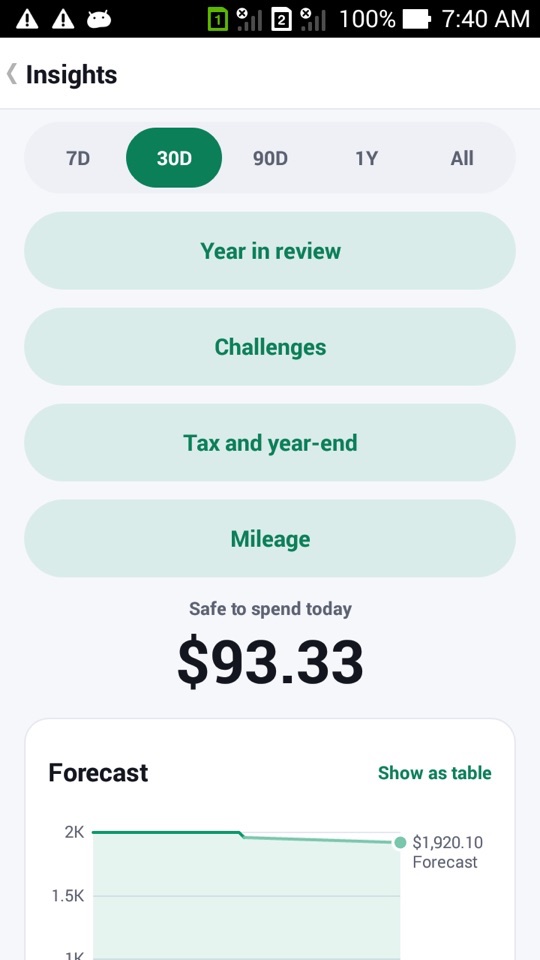
More › Insights › Challenges turns that idea into short, specific goals. There are three kinds:
- No-spend weekend: a whole weekend without spending.
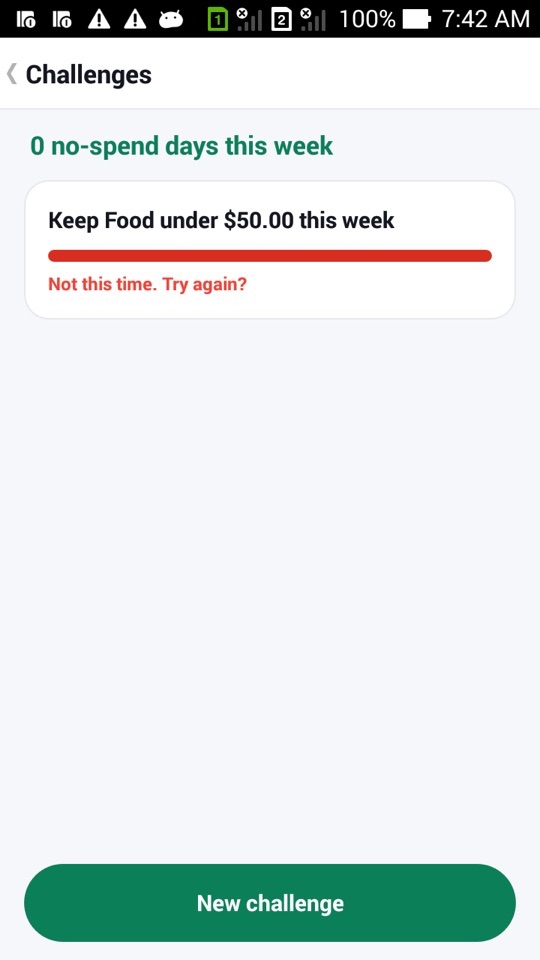
- Cap a category this week: for example, keep Food under $50.00 this week.
- No-spend days this month: pick how many days to aim for.
Each challenge shows its progress. When it ends, you get one notification, either "You did it!" or "Not this time. Try again?". There's no streak shaming and no countdown pressure.
If you have the Wear OS app, there's a complication for your no-spend streak too.
The wait list: a pause before you buy
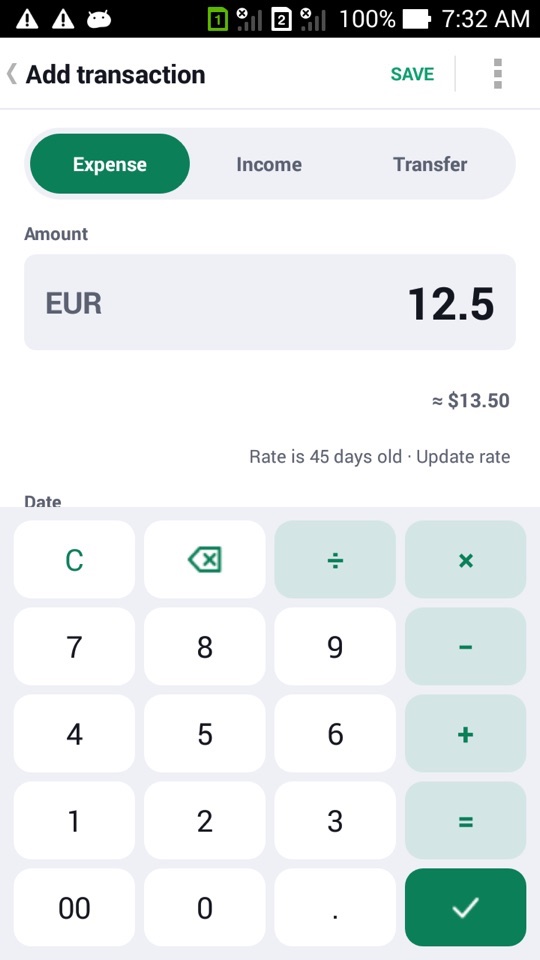
Impulse buys are often just bought too quickly. The wait list adds a pause. It's off by default. Turn it on under More › Wait list, then add an item from there or from Add › ⋮ › Add to wait list. Choose how long to wait: a day, a week or a month.
When the time is up, MoneyBook sends one notification with three choices:
- Buy opens a pre-filled expense, so logging the purchase takes a tap.
- Keep waiting pushes it back.
- Remove drops it.
At the top of the wait list, Saved by waiting adds up the items you removed. It only counts things you decided not to buy, not things you're still waiting on, so the number is honest. We also check the wait-list wording automatically for guilt and pressure words, and none are allowed.
Year in review
Open More › Insights › Year in review at any time to step through a few cards about your year: what you spent, your savings rate, your top category and top payee, your biggest spending day, no-spend days, your longest no-spend streak, and the category where you improved most compared with last year. From 1 December to 31 January, Home also shows a Year in review card.
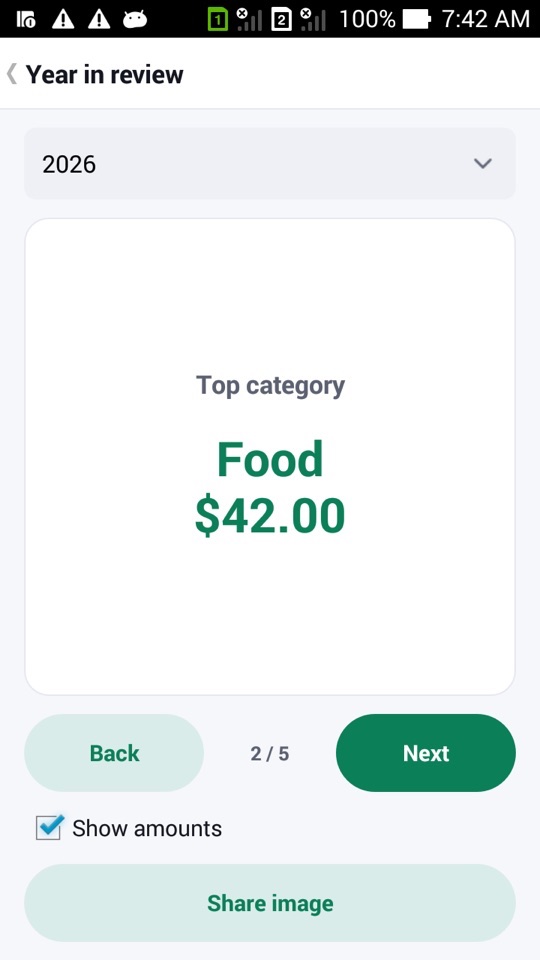
Amounts are hidden by default. Tick Show amounts to see them. Share image creates a picture of the card that follows the same setting, so you can share your top category or no-spend streak without showing what you earn. The image is created on your phone and goes only where you send it. If animations are off on your phone, the cards appear without motion.
Fewer, better notifications
Habit tools can turn into nagging. Every notification MoneyBook sends goes through one set of limits that you control under More › Notification limits:
- A weekly cap, from 0 to 21 (7 by default).
- Quiet hours.
- Pausing a kind of alert for the rest of the month.
- At least a day between similar alerts.
- After you dismiss the same kind three times, MoneyBook asks once whether to turn it off.
Bills due today, and reminders you set yourself, always get through. An optional Sunday check-in gives three neutral facts about your week. If a notification ever surprises you, Why did I get this? explains it.
How to try a no-spend weekend
- Open More › Insights and tap Challenges.
- Tap New challenge and pick No-spend weekend.
- If rent or another automatic bill would break it, mark that category Doesn't break a no-spend day in More › Categories.
- Log any spending as usual. The challenge updates by itself.
- On Monday, check the result, then look at the calendar's check badges.
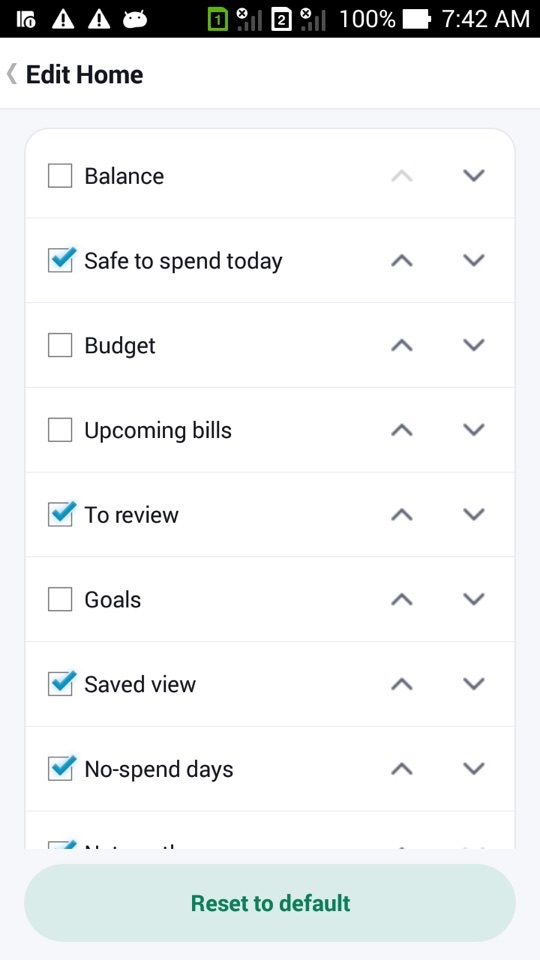
- Optionally, add the No-spend days card in More › Edit Home to keep the count on Home.
FAQ
Does Saved by waiting count items I'm still waiting on?
No. It only counts items you removed from the wait list, so it reflects money you actually decided not to spend.
Will challenges send me lots of reminders?
No. Each challenge sends one notification when it ends, and every alert respects your Notification limits.
Can I share my Year in review without showing amounts?
Yes. Amounts are hidden by default, and the share image follows the Show amounts setting.
Can I turn all of this off?
Yes. The wait list is off by default, challenges only run when you start one, and you can hide the Home cards and limit or pause notifications.