 MoneyBook
Backups you control, and moving to a new phone
Daily local snapshots, encrypted backups to any folder, a full export, an undo history and an easy move to a new phone. All without an account.
A money app with no account has one obvious question to answer: what if I lose my phone? Most apps answer with "it's in our cloud". MoneyBook has no internet permission, so its answer is different. It keeps several layers of backup and lets you decide where copies go.
This post goes through each layer, from automatic snapshots on the phone to an encrypted file you carry to a new device.
Layer 1: daily snapshots on the phone
Once a day, MoneyBook makes a consistent copy of your ledger and keeps the last seven. Before each snapshot, it checks the database for damage.
MoneyBook also runs that check when it starts. If it ever finds a problem, Home offers Restore last good snapshot, which picks the newest snapshot that passes its own check. You don't have to know where the files are.
These snapshots protect against a corrupted database. They don't help if the phone itself is lost, which is what the next layers are for.
Layer 2: encrypted backups to a folder you choose
Under More › Privacy & data › Backups to a folder, pick any folder your phone can see. MoneyBook writes an encrypted snapshot there, daily or weekly, and keeps the newest ones (from 3 to 30, ten by default).
Here's the useful part. If that folder belongs to a cloud storage app on your phone, that app syncs the files off the device. MoneyBook itself stays offline: it only writes a file. The backups are encrypted with AES-256-GCM using a key derived from your passphrase. On Android 6 and later, the passphrase is itself protected by the Android Keystore.
Restore from folder shows what a backup contains, with counts, before anything is replaced.
On Android 4.3 and 4.4, folder backups are written to Download/MoneyBook instead of a folder you pick.
Layer 3: export everything, any time
More › Export everything writes one file with your whole book. You choose where it goes, and you can protect it with a passphrase. The Last backup line in More shows when you last did it.
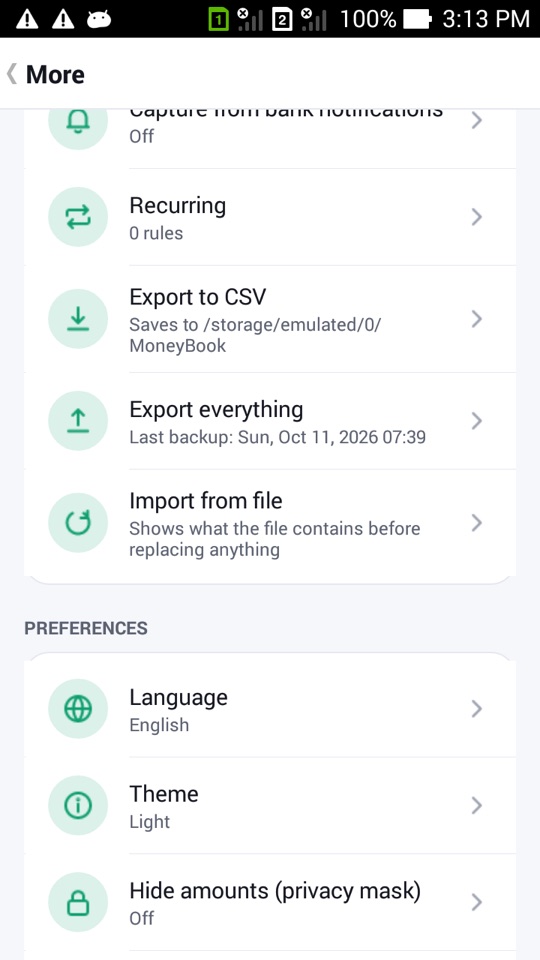
If you want your data in another tool, there are open formats too: CSV (Excel-friendly), QIF, and a documented JSON format. On Android 4.4 and later you can also make a PDF monthly statement with totals, charts and every transaction.
Layer 4: an undo history for deletions
Most deletes in MoneyBook can be undone straight from the snackbar. If you notice later, More › Privacy & data › Undo history keeps the last 50 deletions: transactions, accounts, categories, goals, debts, events, recurring rules and bookmarks. Pick one and restore it.
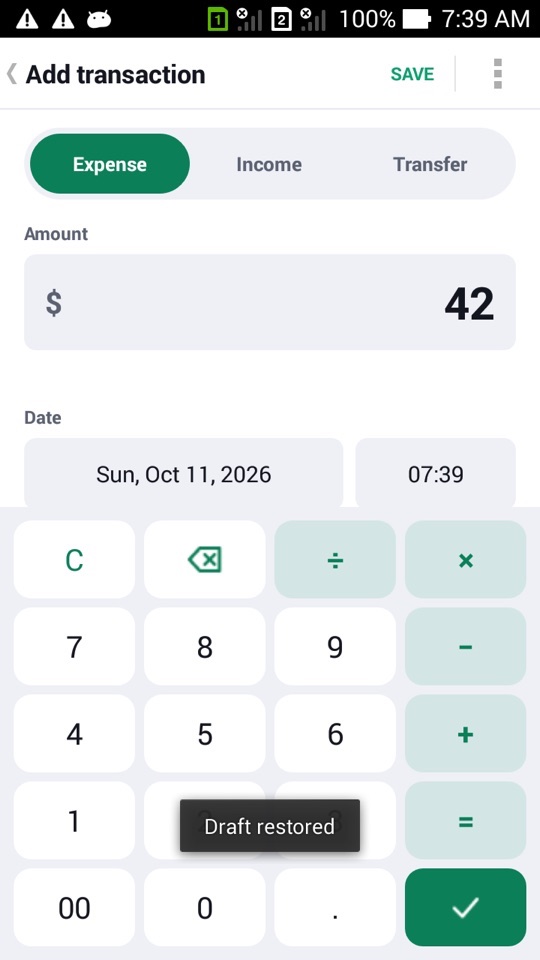
Unsaved work is protected too. A new transaction you haven't saved yet survives leaving the app, a rotation or Android closing the app in the background.
Moving to a new phone
More › Privacy & data › Move to a new phone creates an encrypted snapshot and hands it to the share sheet. Send it with Nearby Share, Bluetooth or a cable. Nothing passes through a server. On the new phone, install MoneyBook and use More › Import from file. You'll see what the file contains, with counts, before anything is replaced.
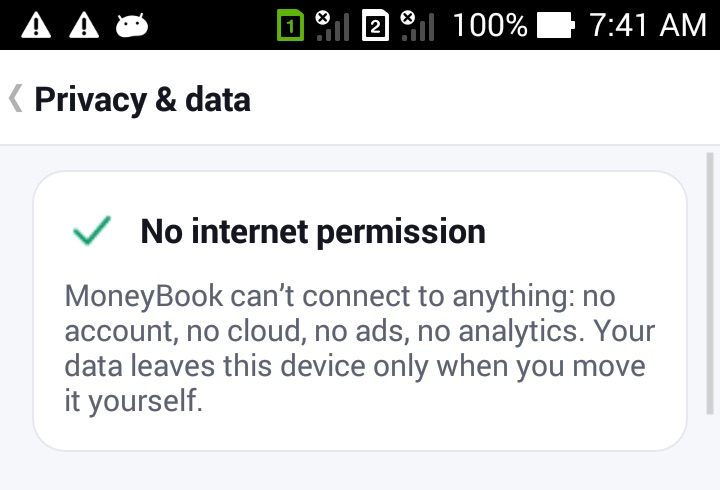
Android's own device backup is a separate thing. In Privacy & data you can let Android include the ledger in its device backup, or exclude it so nothing leaves the phone that way. Either way, your PIN and biometric settings are never included.
How to set up backups in five minutes
- Open More › Privacy & data.
- Tap Backups to a folder and pick a folder. Use a cloud-synced folder if you want a copy off the phone.
- Set a passphrase you'll remember, and write it down somewhere safe. Without it, an encrypted backup can't be opened.
- Choose daily or weekly, and how many backups to keep.
- Go back to More and tap Export everything once now, so you have a backup today.
- Check the Last backup line in More from time to time.
FAQ
Can you recover my data if I forget my passphrase?
No. There's no account and no server, so nobody else holds a copy of your key. Keep the passphrase somewhere safe.
Are receipt photos included in backups?
The ledger, settings and transactions are in your backups and exports. Receipt photos are stored separately on the phone. For a year's receipts, the accountant pack in The year-end tax pack bundles them into a ZIP.
How much space do the backups take?
More › Privacy & data shows how much space the ledger, receipts and local snapshots use on the phone. Only the last seven local snapshots are kept, and you choose how many folder backups to keep.
Does a backup work on an old phone?
Yes. Everything here works from Android 4.3, with some differences: files go to Download/MoneyBook instead of a folder you pick, and PDF statements need Android 4.4 or later.