 MoneyBook
The year-end tax pack and mileage log
Tag expenses with a tax category, log business mileage, find items missing receipts and hand your accountant one ZIP file at year end.
For many people, the hardest part of tax season isn't the forms. It's finding everything: the work purchases, the medical bills, the donation receipts, the trips to clients. They're usually spread across a year of bank statements and a drawer of paper.
MoneyBook can't do your taxes, and it doesn't try. What it can do is help you sort the year as you go, so at the end you hand your accountant one tidy file instead of a shoebox.
MoneyBook is a record-keeping tool, not tax advice. What counts as deductible, and how much, depends on where you live and your situation. Check figures with a qualified adviser or your tax authority.
The app says the same thing on the screen itself: "MoneyBook doesn't give tax advice. Check what's deductible with your tax office or an adviser."
Tax categories and deductible %
When you add or edit an expense, you can give it a Tax category. MoneyBook starts you off with a few common ones: Work expenses, Medical, Charity, Education and Home office. You can add your own as well.
Each expense can also have a Deductible %. That's useful when only part of something counts, for example a phone you use partly for work. MoneyBook then works out the deductible amount for you. It does the arithmetic, but you decide the percentage.
Tax categories are separate from your normal categories. A laptop can stay in Shopping for your budget and still be marked Work expenses for tax.
The Tax and year-end screen
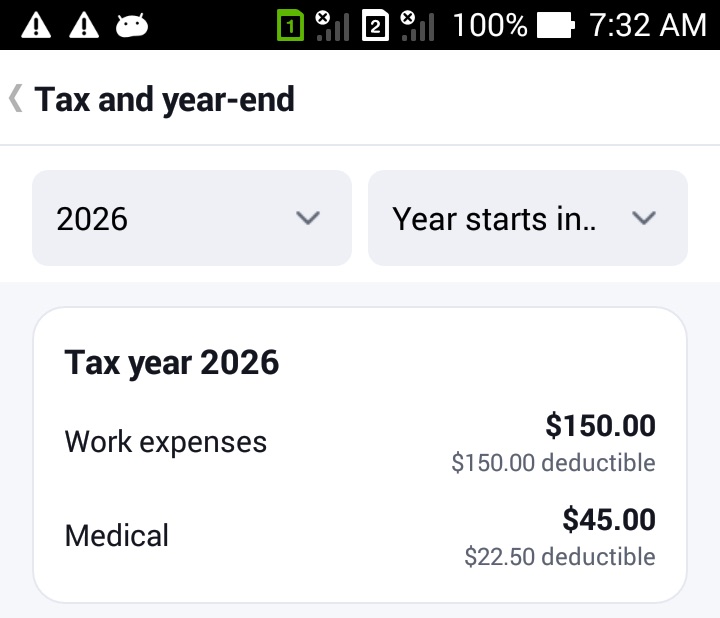
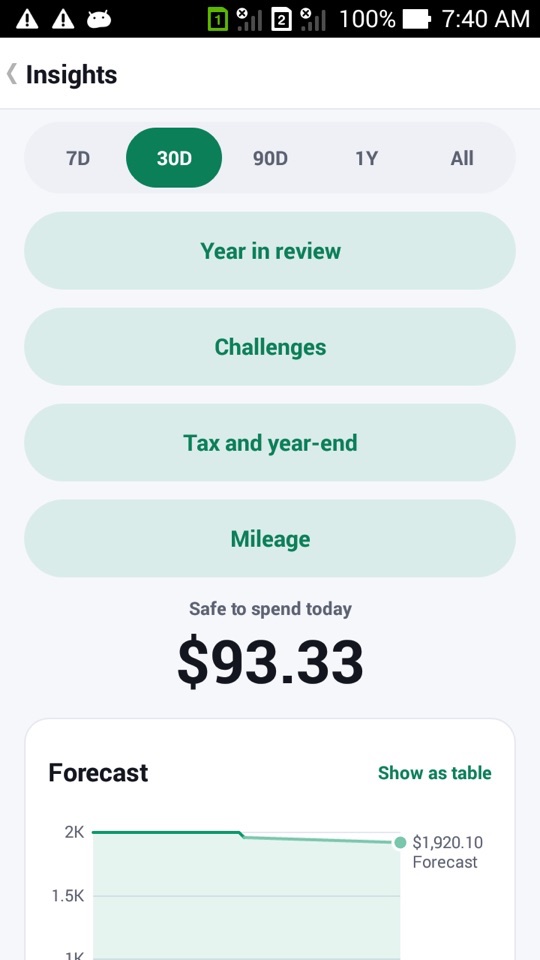
Open More › Insights › Tax and year-end. At the top, pick the tax year. If your tax year doesn't start in January, set the month it starts with Year starts in…, and MoneyBook uses the right dates.
The screen then shows:
- A total per tax category for that year, with the deductible amount under each.
- Expenses missing a receipt. For example, "1 expense is missing a receipt", with a list you can tap to open each one and attach a photo.
- Make accountant pack and Log mileage buttons.
The accountant pack
Tap Make accountant pack and MoneyBook creates one ZIP file containing:
- A CSV with the tax year's figures, which opens in any spreadsheet app.
- A PDF summary with the totals per tax category (Android 4.4 and later).
- Your receipt images, each named by date, merchant and amount, so your accountant can match them without opening every file.
The ZIP is created on your phone. You choose where it goes: save it to a folder, or send it through the share sheet by email, a messaging app or a USB cable. MoneyBook never uploads it anywhere, because it has no internet permission.
Getting receipts in
The missing-receipt list only helps if attaching a receipt is easy. In MoneyBook:
- Each transaction can have up to five receipt photos. On Android 13 and later MoneyBook uses the system Photo Picker. On older versions it uses the standard file picker. Neither needs a storage permission.
- Photos are scaled down when you attach them, so a year of receipts doesn't fill your phone.
- Receipt beside the form shows the receipt you're entering, zoomable, above the amount, merchant, date and category fields, or beside them on a wide screen. You read the numbers off the photo as you type them.
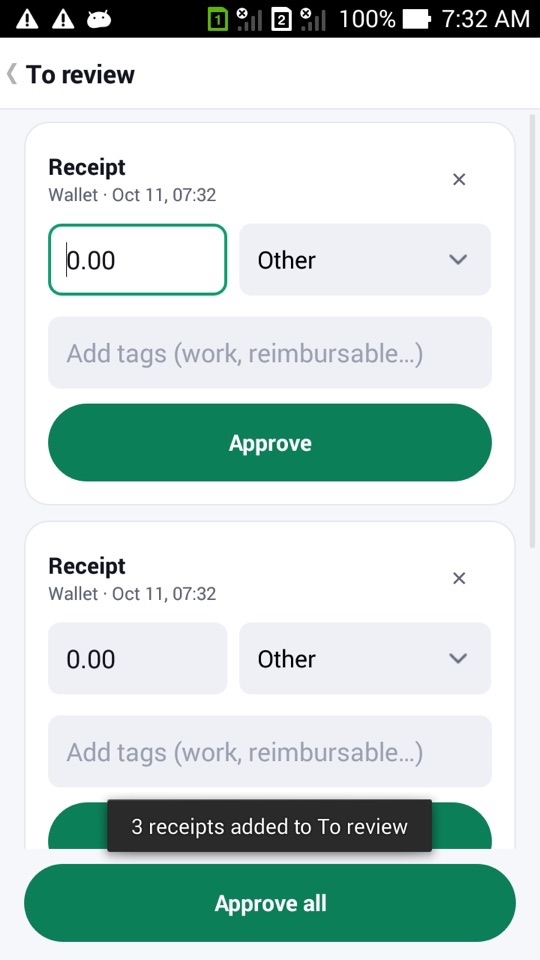
- Share receipt images to MoneyBook from your gallery and each one becomes a draft in your To review inbox. Fill in the amount and category later, then Approve or Approve all.
The mileage log
If you drive for work, open More › Insights › Mileage or tap Log mileage on the tax screen. Enter:
- The date.
- The route, from and to. MoneyBook remembers routes you've used before.
- The distance, or the odometer reading at the start and end.
- The purpose of the trip.
- The rate per unit you're claiming.
MoneyBook keeps a history of your rates by date, so a trip in March uses the rate that applied in March even if you changed it in July. Each trip is saved as an expense with a tax category and shows up in the accountant pack. If you only want a record of the trip, tick Only for the record (don't count in Stats).
How to make your accountant pack
- During the year, give relevant expenses a Tax category (and a Deductible % if only part counts).
- Attach receipts as you go, or share receipt photos to MoneyBook and approve them later in To review.
- Log work trips under Mileage.
- At year end, open More › Insights › Tax and year-end, choose the year and set the month it starts.
- Work through the missing receipt list.
- Tap Make accountant pack and save the ZIP or share it with your accountant.
FAQ
Does MoneyBook know what's deductible where I live?
No. Tax rules differ by country and by person, and MoneyBook doesn't give tax advice. It records the categories and percentages you choose and adds them up.
My tax year starts in April. Does that work?
Yes. Set the month under Year starts in… and the totals, missing-receipt list and accountant pack all use that tax year.
Can I open the pack without MoneyBook?
Yes. It's a standard ZIP with a CSV, a PDF summary (Android 4.4 and later) and image files, so any computer can open it.
Does the mileage log track my location?
No. MoneyBook has no location permission. You type the route and distance, or the odometer readings.