 MoneyBook
MoneyBook in 40 seconds: a feature tour on video
Two short films walk through what MoneyBook does: two-tap logging, statistics, safe to spend today, budgets and goals, and dark mode. Here is what you are seeing, scene by scene.
Screenshots show what an app looks like. They don't show how quickly it gets out of your way. So we made two short films about MoneyBook: a 40-second tour for a laptop or TV, and a 25-second cut for your phone.
Every screen in both films is a real MoneyBook screenshot, the same build that's on Google Play, filled with sample data. No mock-ups.
Scene 1: a money book that lives on your phone
The film opens on the Home screen: the month's income, expenses and total, then the day-by-day list underneath. Two labels pop up next to the phone, and they are the whole idea of the app:
- Works offline. Your data is a SQLite database on your phone. There is no MoneyBook server, so nothing gets uploaded anywhere.
- No account, no ads. You pay once on Google Play and every feature is unlocked. No sign-up, no subscription.
We wrote more about that choice in why MoneyBook works offline with no account.
Scene 2: log a coffee in seconds
The camera punches in on the amount field of the Add screen. The keypad is a real calculator, so typing 12.80+4.50 shows = $17.30 before you save. Above it, bookmark chips like Coffee, Lunch and Metro fill in the whole form in one tap.
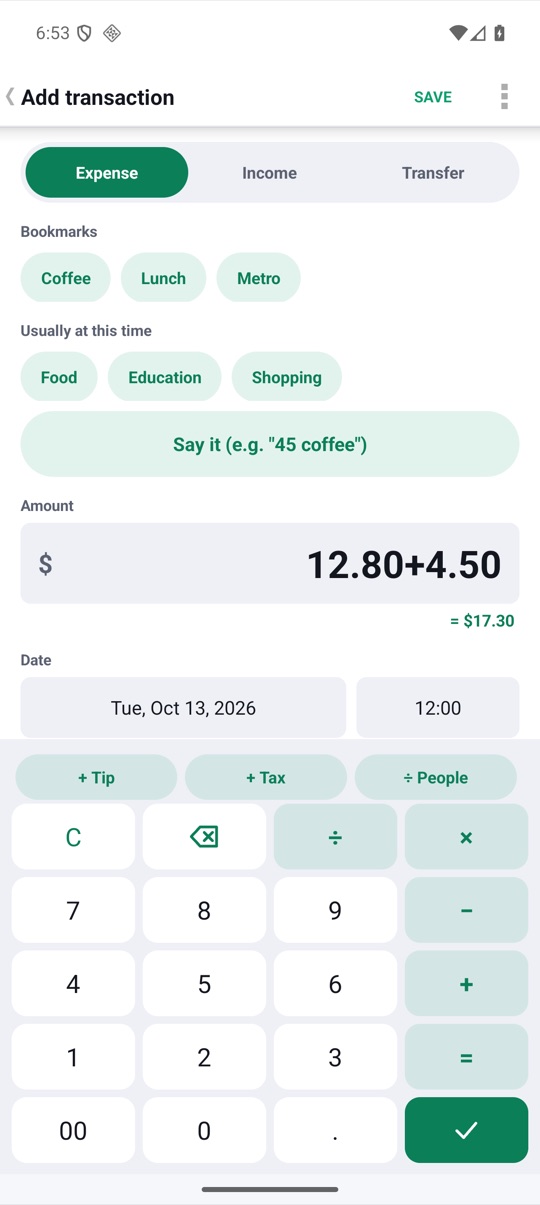
The film only has time for the keypad and bookmarks. Quick add from a notification, widgets and the Wear OS tile are covered in log a transaction in two taps.
Scene 3: see where it all goes
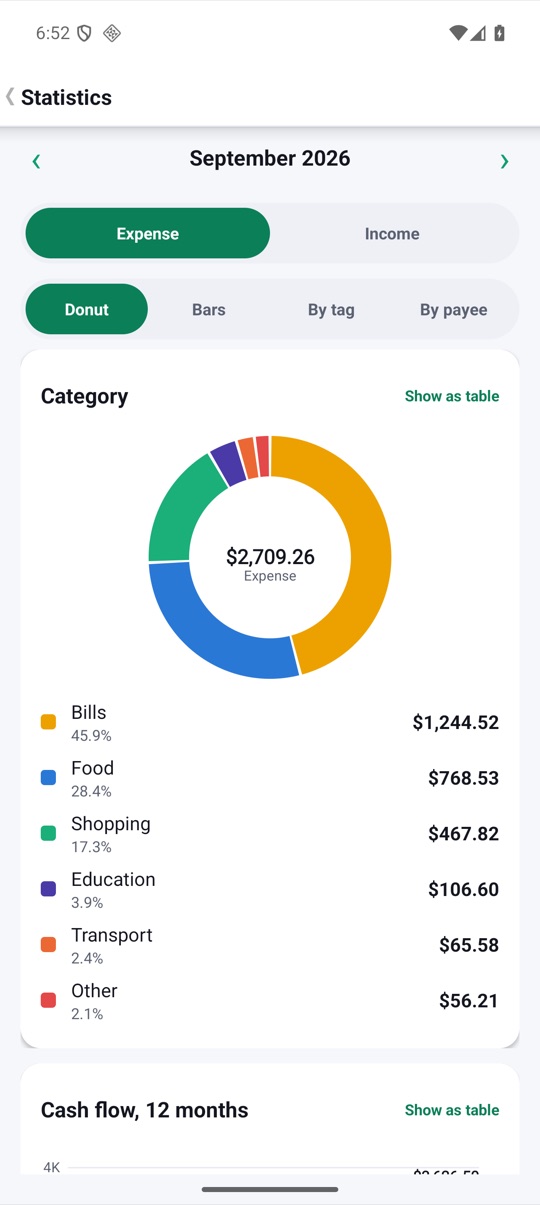
Next, the camera glides past a row of phones and stops on Statistics. The donut breaks a month down by category, and you can switch to bars, tags or payees. Further down the same screen there's a 12-month cash flow, so you can see whether this month is unusual or just how things go.
Scene 4: what's safe to spend today
This is the number people check most. MoneyBook takes your balances, subtracts the recurring bills and credit-card payments due before your next payday, and divides what's left by the days remaining. In the film it rolls up to $129.06, and the Insights screen shows the 30-day forecast behind it.
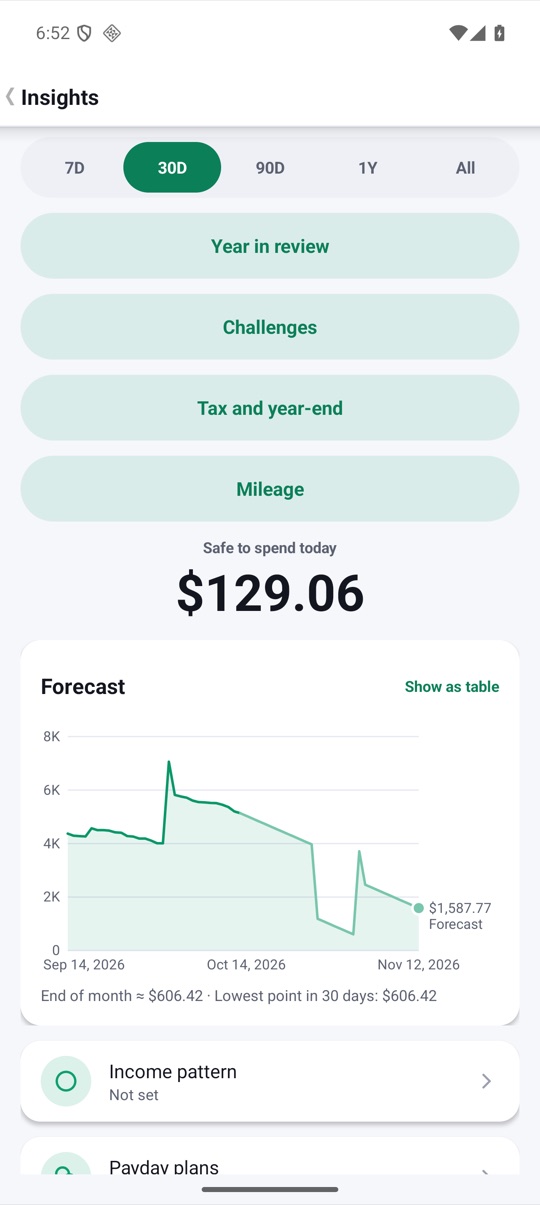
How the number is worked out, and why it sometimes drops on a day you didn't spend anything, is explained in safe to spend today and the 30-day forecast.
Scene 5: budgets and goals that keep you on track
Five cards stack up while a counter ticks to 5. That's a monthly total budget, the flexible amount left, and three savings goals: an emergency fund, a summer trip and a new laptop. Each goal shows its progress ring and when you'll reach it at your current pace.
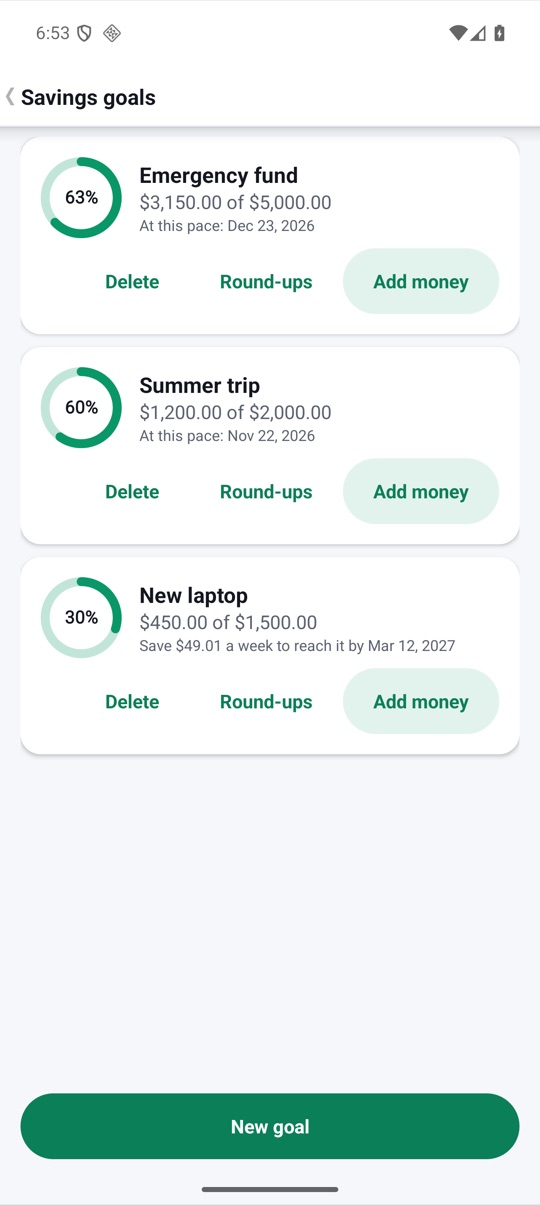
Budgets can be weekly, monthly or yearly, and unspent money can carry over. If you prefer giving every dollar a job, switch Budget to Envelopes. Envelope budgeting and sinking funds walks through both.
Scene 6: easy on the eyes at night
A tap on the switch, and a night line sweeps across the frame. Behind it, the same Home screen comes back in dark mode with the same layout and the same numbers. MoneyBook follows your system theme by default, or you can set the Theme to Light or Dark yourself.
The phone cut
The vertical film skips the title cards and the statistics scene and leads with the name, so it works as a Short or a TikTok. Watch it on your phone:
There's more on the product page, including a Vietnamese version of both films and every screenshot from the store listing.
FAQ
Is the data in the video real?
No. It's sample data the store screenshots use too: a made-up September 2026 with coffees, groceries and two savings transfers. Your own MoneyBook starts empty.
Do I need an account to use what's shown?
No. Everything in the films works without an account or an internet connection, on Android 4.3 and newer.
Can I share these videos?
Yes. Both films are on the product page with a download link. They're free to share or embed.